PLANNING_TREE Step
Overview
The PLANNING_TREE step displays the publication’s planning structure in a hierarchical tree view. It is typically used to show documents and planning units along with their configured content metadata columns.
Common use cases include:
- Reviewing publication structure
- Displaying planning units in a tree
- Confirm and adjust the planning information: product template and page template
- Showing content metadata values in columns
- Providing context before other wizard steps
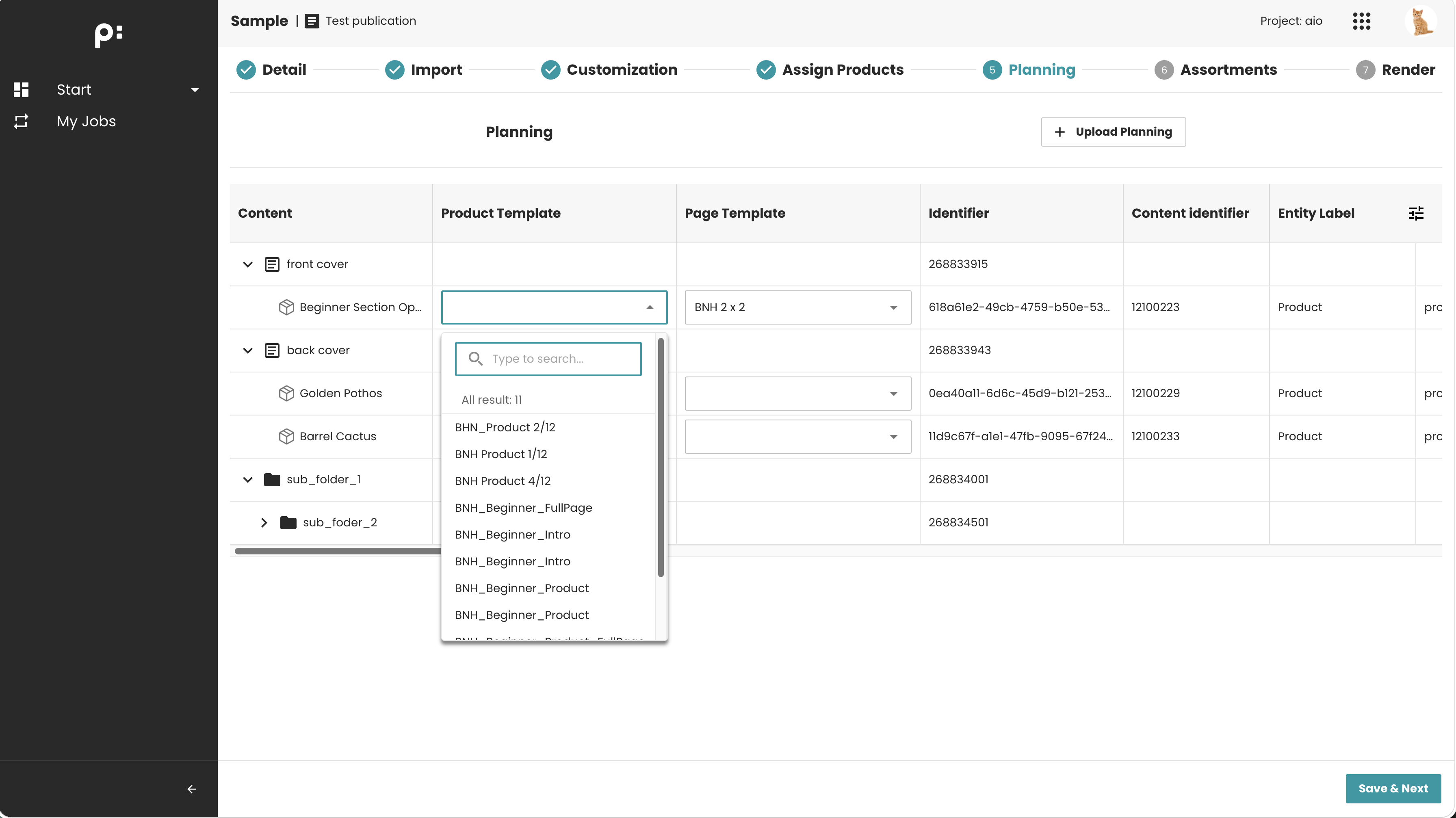
Key Features
- Hierarchical tree display (expand/collapse)
- Required columns and default columns defined by backend configuration (ISON)
- Displays content metadata for each planning node
- Often used as informational confirmation step
Behavior Summary
Tree Loading
When the user enters the step:
- The frontend loads the planning structure from the backend
- Columns are shown based on backend configuration
- Branches can be expanded to view nested items
Interaction Behavior
Users can:
- Expand/collapse nodes
- View column values
- Inspect planning hierarchy
- Select the page template and product template for the planning based on specific conditions:
- Product template selection is available only if the publication has been assigned one or more product templates.
- Page template selection is available only if:
- The publication has been assigned one or more page templates,
- and the document has been assigned the "Page Template" metadata (_
priint_pageTemplate, one of the supported default metadata attributes).
Configuration
Sample configuration
<wizardSteps>
    <wizardStep id="planning_overview">
        <label>Planning Overview</label>
        <type>PLANNING_TREE</type>
        <status>planning_overview_status</status>
        <required>false</required>
        <parameters>
            <!-- Optional: specifies static and metadata columns to configure the tree. Default: all static columns and available content metadata will be shown -->
            <parameter key="entity_column" id="static_columns">static_columns</parameter>
            <parameter key="entity_column" id="metadata_columns">metadata_columns</parameter>
            <parameter key="document_filter">planning_step</parameter>
        </parameters>
    </wizardStep>
</wizardSteps>

<entityColumns>
<entityColumn type="static" id="static_columns">
    ...
</entityColumn>
<entityColumn type="metadata" id="metadata_columns">
    ...
</entityColumn>
</entityColumns>
<documentFilters>
<documentFilter id="planning_step">
    <whiteListing>
        <arguments>
            <argument key="language_cbx">ALL</argument>
        </arguments>
    </whiteListing>
    <blackListing>
        <arguments>
            <argument key="w2p_ContentSelection">false</argument>
        </arguments>
    </blackListing>
</documentFilter>
</documentFilters>
Configuration Notes
- The parameter with key
entity_columnand idstatic_columnsis used to define the list of static properties displayed for the planning. If this parameter is not configured, all available properties will be displayed by default.- Reference: Entity Columns Configuration
- The parameter with key
entity_columnand idmetadata_columnsis used to define the list of content metadata displayed for the planning. If this parameter is not configured, all available content metadata will be displayed by default.- Reference: Entity Columns Configuration
- The parameter with key
document_filteris used to filter the documents displayed in the wizard. If this parameter is not configured, all documents will be displayed.- Reference: Document Filters Configuration
When to Use This Step
Use the PLANNING_TREE step when you need to:
- Show the publication structure
- Provide context before editing or assignment steps
- Visualize planning content metadata
- Allow users to review documents and planning data in a structured way
Typical examples:
- Showing structure after product assignment
- Presenting planning elements during workflow setup
Notes
- Columns are defined by backend configuration: entity columns.
- Editing capabilities depend entirely on backend implementation.
- No custom parameters should be added unless supported by your platform version.
- The value of the parameter with key
document_filteris the ID of the<documentFilter>tag.